How to Install a WordPress Theme
Okay this is my favorite step! Installing a theme on WordPress!
Everything up until now has been pretty technical.
- Signing up for hosting
- Installing WordPress
- Setting up your WordPress settings
Important stuff but not exactly fun.
This is the fun part!
By the end of this post your blog is going to actually look like a blog.
What Even Is a WordPress Theme?
First, what even is a WordPress theme?
Think of your blog like a house. WordPress is the structure, the walls, the roof, the plumbing.
It holds everything together but it doesn’t look like much on its own.
A theme is the interior design.
It’s what controls how your blog looks, the colors, the fonts, the layout, all of it.
You can completely change the look of your blog just by switching themes. No coding required.
Every WordPress blog has a theme. We’re going to install a great one right now.
Why I Recommend Kadence
There are hundreds of WordPress themes out there. But, I’m going to make this easy for you so you don’t waste time.
Use the WP Kadence Theme.
Kadence is a free theme, beginner friendly, and works beautifully with WordPress right out of the box.
It’s fast, it’s clean, and it comes with a whole library of free starter templates so you don’t have to design anything from scratch (unless you want to!).
You just pick a look you like, install it, and start customizing.
It’s also what I use on all of my blogs (this one included!) and recommend to every new blogger I work with.
It just makes everything easier. When I first started blogging I struggled on how to setup a WordPress theme. With Kadence you won’t have to struggle!
How to Install Kadence
Log into your WordPress dashboard and follow these steps.
I promise this is easier than it looks.
How To Install the Kadence theme:
- Go to Appearance > Themes
- Click Add New
- Search for Kadence in the search bar
- Click Install
- Click Activate

That’s It!
Kadence is now your active theme.
Now install two free plugins that come with Kadence to get everything up and running.
These give you access to the starter templates and extra design blocks.
How To Install Kadence Starter Templates:
- Go to Plugins > Add New
- Search for Kadence Starter Templates
- Click Install then Activate
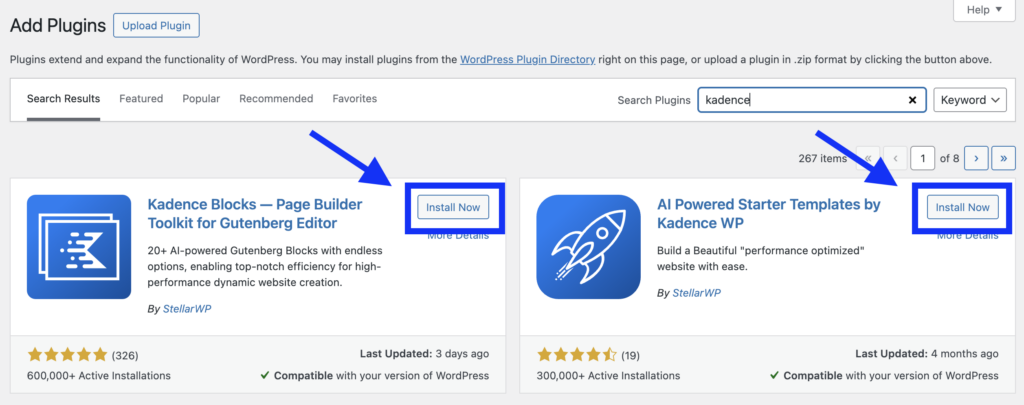
How to Install Kadence Blocks:
- Still in Plugins > Add New
- Search for Kadence Blocks
- Click Install then Activate

That’s it!
Three installs and you’re ready to pick your design.
Pick Your Free Starter Template
Now you are ready to find your look and feel of the site.

Go to Appearance > Kadence > Starter Templates.
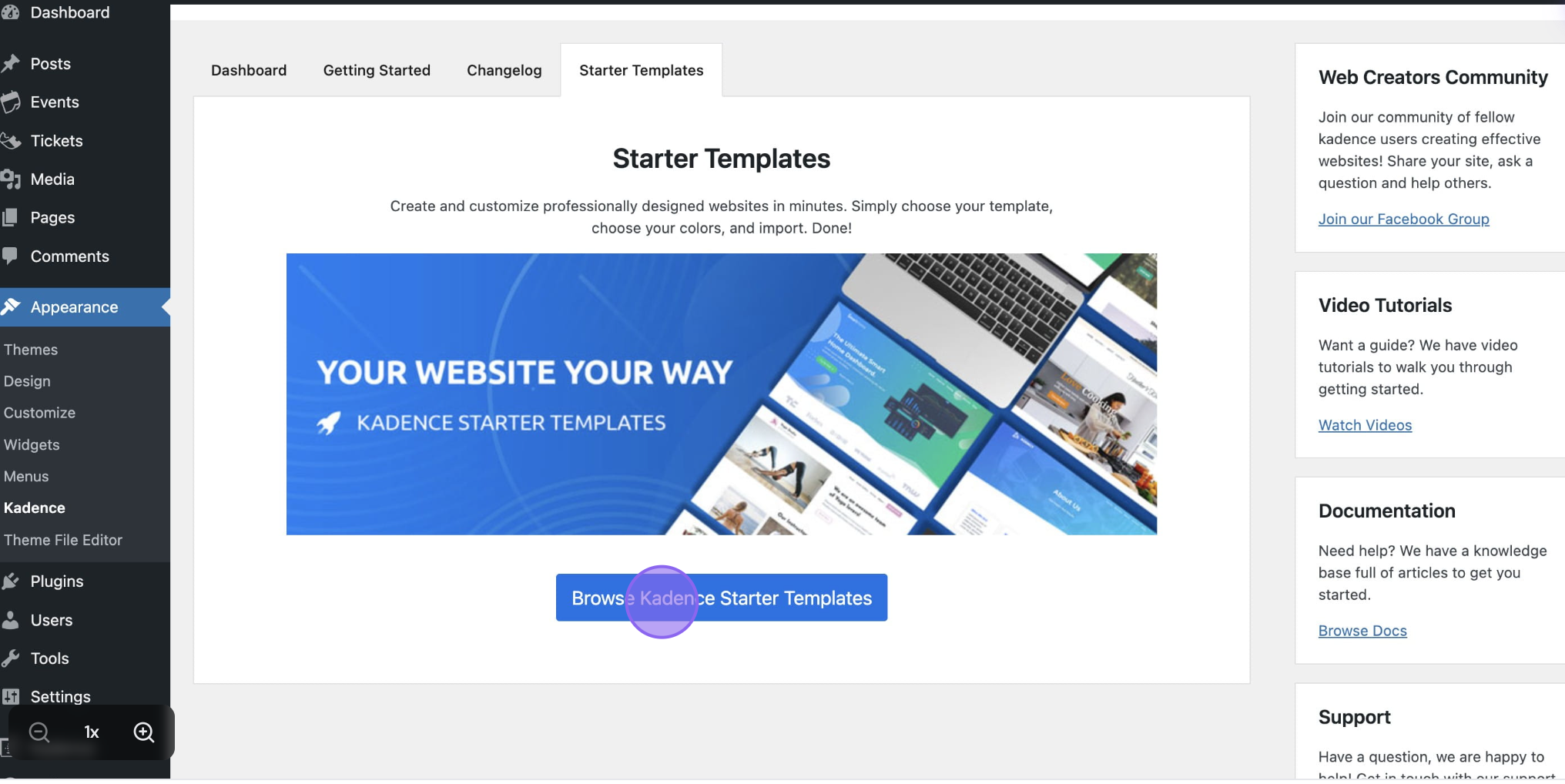
You’ll see a big library of free designs to choose from.

To filter to just the free ones click the Free filter at the top.
Browse through and find something that feels like your blog.
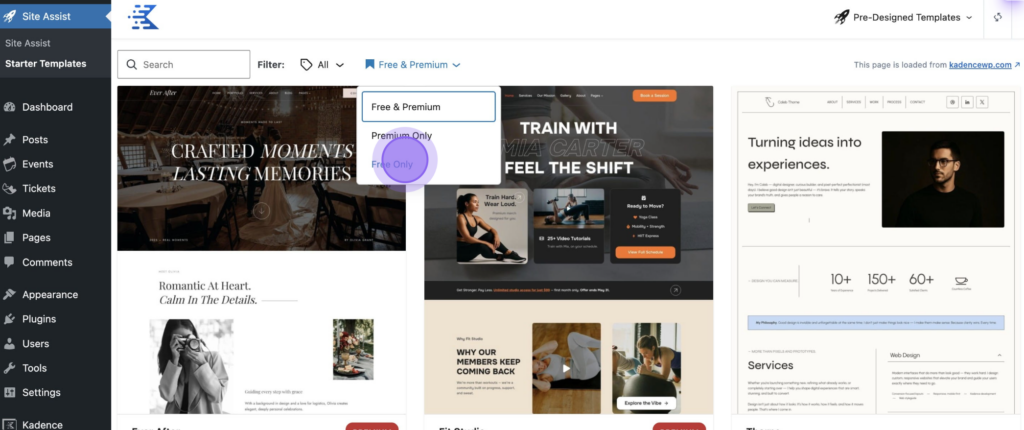
Don’t overthink this, you can always change it later.
Just pick something clean that you like the look of.
When you find one click on it and select the colors you like and hit Next.

Kadence will set everything up for you. In a few minutes your blog is going to have a real design.
Kadence also recently launched AI-powered templates if you want to try something a little different. You can find those in the same area.
Want Something More Custom?
Kadence also has paid theme options if you want a more polished, designer look without having to build it yourself. These are done-for-you designs that install just like the free version but give your blog a more unique and elevated feel.
Paid Kadence themes typically range from around $39 to $200.
I’ll walk you through the best options and how to install them in the next post.
What’s Next?
In the next post I’m sharing my favorite paid Kadence theme options for bloggers who want a more custom look, and walking you through how to install one if you decide to go that route.
Drop a comment below and tell me which starter template you picked!
I love seeing what everyone chooses.